
Your Instagram ad is most likely not delivering because of a billing issue, an ad stuck in review, a targeting audience that’s too narrow, a low budget or bid, or auction overlap between your own ad sets. First, check whether you boosted the post from the app or built it in Meta Ads Manager, since the fix differs for each. This guide covers all eight causes, the exact status labels to check in Ads Manager, and a step by step diagnostic checklist, so keep reading to find the one blocking your ad and fix it today.
First, check this: boosted post or Ads Manager campaign?
Instagram gives you two separate ways to run an ad, and they don’t share the same rules.
- Boosted from the Instagram app: a simplified system, with fewer targeting options and a faster, lighter review.
- Built in Meta Ads Manager: the full auction system, where campaign budgets, bid strategies, and audience overlap all decide whether the ad delivers.
This matters because the fix isn’t the same for both. A boosted post stuck on “Not Delivering” is usually a payment or account issue. An Ads Manager campaign with the same status could be stuck for any of eight different reasons, covered below.
What “not delivering” actually means
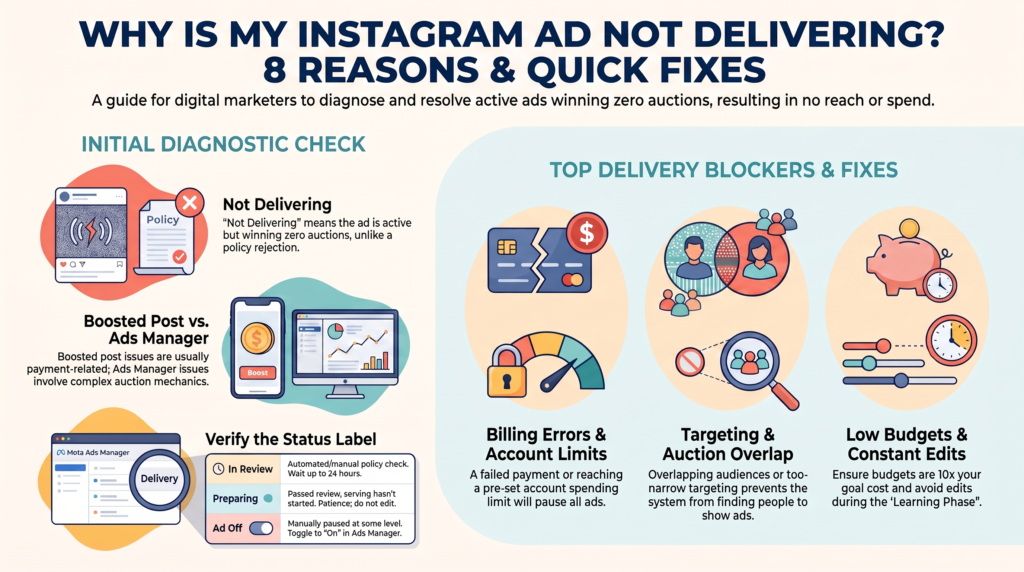
“Not Delivering” is a specific status inside Meta Ads Manager. It shows up when an ad, ad set, or campaign is marked Active but has spent close to $0 and reached close to zero people, days after it should have started. That’s different from an ad being rejected, and different from an ad that’s simply underperforming.
Meta’s delivery system runs on an auction, not a queue. Every time there’s a chance to show an ad, competing ads get scored on relevance and predicted results, and the best-scoring ad wins that impression. According to Meta’s Business Help Center, the ad delivery system uses an ad auction and machine learning to decide where, when, and to whom an ad gets shown. If your ad never wins that auction, it never delivers, and Ads Manager keeps the status at “Not Delivering” until something changes.
The exact Meta status labels
- In Review: the ad has been submitted and is waiting on Meta’s automated and manual review.
- Preparing: the ad passed review but the delivery system hasn’t started serving it yet.
- Rejected: the ad failed review and needs a fix before it can run.
- Ad Off: the ad, ad set, or campaign has been manually paused or turned off.
Open Ads Manager and check the Delivery column before doing anything else. Matching your exact status to this list saves time. The fix for “Preparing” is patience, and the fix for “Rejected” is a policy edit. They’re not the same problem.
The real reasons your Instagram ad is not delivering
Eight things reliably stop an Instagram ad from delivering. Some are obvious once you know where to look. Others, like auction overlap, rarely get mentioned outside Meta’s own documentation.
Billing or payment errors
A failed payment pauses every ad on the account immediately, not just one campaign. This happens when a card expires, a charge gets declined, or the account hits its spending limit. Meta’s Business Help Center explains that a failed payment pauses your ads and disables the account until the balance is paid. If delivery stopped suddenly across every campaign at once, check Billing and Payments first.
Your ad is still in review or processing
New ads typically clear review within 24 hours, though it can take longer during high-volume periods. An ad can look live in the Instagram app while it’s technically still Preparing in the backend, which is why the in-app view can be misleading. Give it a full day before assuming something is broken.
Your audience is too narrow
An audience that’s too small, or built from several overlapping requirements stacked on top of each other, leaves the delivery system with almost nobody left to show the ad to. Meta’s own troubleshooting guide flags this as one of the first things to check when a campaign isn’t running. Broadening even one targeting layer is often enough to restart delivery.
Budget or bid set too low
If the daily or lifetime budget runs out, or the bid cap sits below what competitors are paying for the same audience, the ad simply loses every auction it enters. Meta’s own rule of thumb is a daily budget of at least ten times the average cost of the result you’re optimizing for. A $5 average cost per link click needs roughly a $50 daily budget for a fair shot.
Account restrictions or silent policy violations
An account can lose some or all of its advertising privileges without an obvious rejection notice, usually after Meta’s systems flag a policy violation, unusual payment activity, or a failed two-factor authentication check. Meta’s advertising restrictions policy states these limits can include:
- a lower spending cap
- loss of payment features
- loss of the ability to advertise at all
Details are at Meta’s advertising restrictions policy. Business Support Home is where to check for and resolve this.
Auction overlap
This is the cause almost nobody outside Meta’s own documentation mentions. Running several ad sets with similar audiences means they compete against each other in the same auction, and Meta only lets the single highest-value ad from an advertiser into that auction. The rest sit out entirely. It’s common to see every other box checked and delivery still stalled, only to find three near-identical ad sets quietly competing against one another. Meta’s guide on auction overlap recommends combining similar ad sets or turning off the weaker ones.
Stuck in the learning phase after constant edits
Every new ad set, and every ad set with a significant edit, goes through a learning phase while Meta’s delivery system works out how to serve it best. Performance is less stable during this window, and editing the ad set again resets the clock. Meta explains that ad sets exit the learning phase as soon as they can deliver stably, which usually happens after about 50 results within a week of the last significant edit. Constant tweaking is often the reason a campaign never leaves this stage.
Ad account spending limit reached
Every ad account has a spending limit, set either by Meta or by the advertiser. Once it’s hit, every active campaign pauses at once, which looks identical to a billing failure from the outside. Raising or removing the account spending limit in Billing and Payments fixes it, usually within minutes.
Not every one of these applies equally to every advertiser. Meta advertising doesn’t behave the same way for every business model, and audience size and bid competition, in particular, vary a lot by industry.
If you have gone through all seven checks above and delivery still has not resumed, the issue may need a closer look at the account level. Message our team on WhatsApp for a free diagnostic.
Get my free diagnosticBoost vs. Ads Manager: what’s actually different
Here’s where the two systems diverge:
| Boosted post (Instagram app) | Campaign (Meta Ads Manager) | |
| Review speed | Usually faster, simplified review | Standard review, up to 24 hours |
| Delivery status visibility | Limited, just “Boosting” or “Not Delivering” | Full detail: In Review, Preparing, Learning, Learning Limited |
| Targeting control | Basic: interests, location, age | Full: custom audiences, lookalikes, detailed exclusions |
| Who can fix it | Usually just a payment or account check | Budget, bid, targeting, scheduling, or account-level fixes |
If your results depend on precise targeting, Instagram ads have a track record worth understanding before choosing between the two systems.
“Approved but not running” or stuck and can’t delete it?
An ad can pass review and still never spend a cent, which is confusing since “approved” sounds like it should mean “running.” Approval only confirms the ad follows Meta’s policies. It says nothing about whether the ad wins auctions. The same eight reasons above usually explain it, with auction overlap and audience size the most common culprits for an ad that’s approved but stalled.
A “Not Delivering” ad that won’t delete usually just needs the campaign paused first. Turn off the ad set, wait for the status to update, then delete it. Trying to delete an actively serving object is what triggers the error.
Quick diagnostic checklist: what to check, in order
Work through these in order. Most delivery problems get solved in the first three steps.
- Confirm the entry point. Check whether the ad was boosted from the app or built in Ads Manager, since the fix path differs.
- Check billing first. Open Billing and Payments and confirm the last charge went through and no spending limit has been hit.
- Read the exact status. Match the Delivery column to In Review, Preparing, Rejected, or Ad Off before assuming the worst.
- Check the audience size. An estimated audience under a few thousand people is usually too narrow to deliver reliably.
- Check the budget against the bid. Confirm the daily budget covers at least ten times the average cost of the chosen result.
- Look for auction overlap. If several ad sets share a similar audience, combine them or pause the weaker ones.
- Wait out the learning phase. If the ad set was edited recently, give it about a week and 50 results before editing again.
None of this takes guesswork if you know where to look. But running through it manually every time a campaign stalls gets old fast, especially across multiple accounts. Agencies that manage this full-time read these signals differently than a business running its first campaign, which matters if delivery problems keep coming back.
Get a free delivery diagnostic
Working through eight possible causes takes time most business owners don’t have, especially when the campaign is already losing days it can’t get back. If your Instagram ad is not delivering and none of the fixes above worked, Gwenchana’s Digital Advertising Services team will run a free diagnostic on the account and tell you exactly which of these eight things is blocking it. No obligation attached.
Gwenchana’s Digital Advertising Services team manages Meta Ads campaigns across Facebook and Instagram. Send your account status on WhatsApp and we will tell you exactly which of these eight issues is blocking delivery, no obligation attached.
Chat on WhatsApp